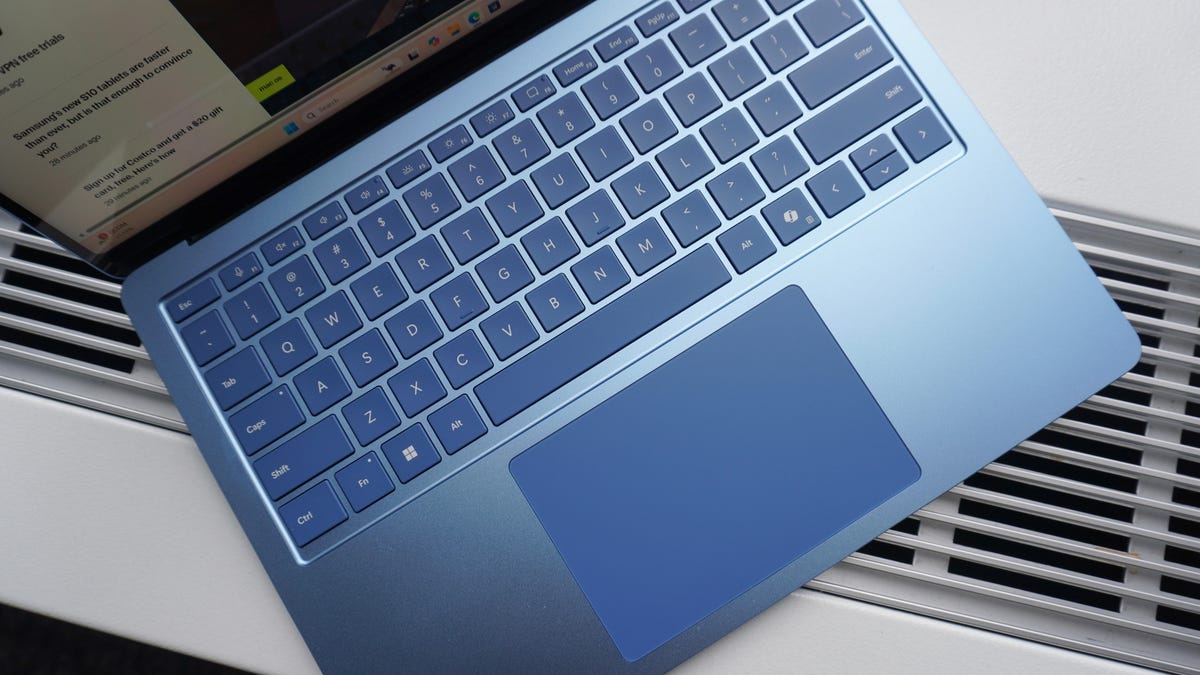
I can still vividly recall the exact moment it hit me that I was “doing it wrong.” I was tucked away in the corner of a crowded coffee shop, nursing a cold brew and trying to hammer out some work. A few tables over, I caught sight of a developer who seemed to be operating on a completely different plane of existence. He was flying through lines of code, windows were snapping to the left and right with surgical precision, and files were opening and closing like some kind of digital magic trick. The most striking part? His hands never once drifted toward the mouse. It was a rhythmic, almost musical performance—a symphony of clicks and clacks. Meanwhile, there I was, dragging my cursor across a massive 27-inch monitor just to hunt down the “undo” button buried in a sub-menu. It felt like watching someone effortlessly pilot a Ferrari through tight city corners while I was still out back trying to figure out how to hitch up a horse and buggy. The disparity in our efficiency was almost embarrassing.
According to the latest industry news, the “ultimate” Windows shortcut guide has been making the rounds again, and honestly, it’s a much-needed wake-up call. It serves as a stark reminder that while Windows has been the backbone of our professional lives for decades, most of us are barely scratching the surface of what the OS can actually do. We’ve fallen into a comfortable, albeit sluggish, reliance on the click-and-drag lifestyle. But let’s be real for a second: your mouse is actually a major productivity bottleneck. Don’t get me wrong—it’s a precision instrument for things like graphic design or photo editing—but for general navigation? It’s a tether. It’s a physical anchor that keeps you from ever reaching that elusive “flow state” where the work just pours out of you without resistance.
This recent deep dive into Windows 11 shortcuts—which, if we’re being honest, we’ve all had more than enough time to master by now in 2026—shines a spotlight on over 50 key combinations that have the potential to completely revolutionize your workday. But it’s not just about rote memorization or checking a list off a spreadsheet. It’s about a fundamental shift in how your brain interacts with the machine sitting in front of you. When you stop “searching” for a button with your eyes and start “triggering” an action with your muscle memory, the computer stops being this separate, clunky entity. It starts to feel like a natural extension of your own thoughts, responding at the speed of your intent rather than the speed of a cursor’s travel time.
Why Every Click is Stealing Your Focus (and Your Sanity)
In the productivity world, we usually talk about efficiency in terms of minutes or hours saved over a week. That’s fine, but what we really should be discussing is cognitive load. Think about it: every single time you move your eyes away from the center of the screen to track a cursor and find a menu item, you’re performing a micro-task. It’s a tiny interruption, but those interruptions add up. According to a landmark 2018 study by the University of California, Irvine, it takes an average of 23 minutes to get back to a state of deep focus after a significant distraction. Now, is a mouse click a “distraction” in the same way a loud phone call is? Maybe not. But the cumulative effect of a thousand tiny navigations creates a layer of friction. It’s like trying to run a marathon in sand; you can do it, but you’re never truly “locked in.”
Take the classic Ctrl + C and Ctrl + V combos. They’ve become the universal language of the digital age. You don’t even think about them anymore; you just decide to copy something, and your fingers have already executed the command before your brain has finished the sentence. Now, just imagine if your entire operating system felt that seamless. The guide highlights that shortcuts like Windows Key + Tab (for Task View) or the criminally underrated Windows Key + V (to access Clipboard History) can turn a messy, clunky multitasking session into a smooth, effortless experience. If you aren’t using the clipboard history yet, I’m telling you, you are living in the dark ages. Being able to see the last ten things you copied instead of just the very last one is a total life-changer, especially for anyone who spends their day doing research, coding, or heavy data entry. It’s the difference between constant back-and-forth and a streamlined workflow.
“The mouse is essentially a pointer for discovery, but the keyboard is a conductor’s baton for execution. To be truly efficient, you must move from discovering to conducting.”
— Editorial Perspective on Digital Workflow
And if you need more convincing, just look at the raw data. According to a 2023 Statista report, Windows still holds a massive 70% share of the global desktop operating system market. That translates to hundreds of millions of people who are likely wasting hours every single week on completely unnecessary mouse movements. It sounds small, but if you save just 30 seconds every hour by switching to shortcuts, that adds up to over 20 hours a year. That’s an entire weekend you’re essentially gifting back to yourself just by learning a few clever finger placements. When you look at it that way, continuing to rely solely on the mouse starts to look like a very expensive habit in terms of your most precious resource: time.
The “Accessibility” Label is Actually Just Code for Better Design
One of the most interesting points raised in the original guide is the vital role of accessibility shortcuts. Too often, these features are buried in the “Ease of Access” settings, which leads a lot of users to believe they’re only intended for people with specific physical limitations. But that is a huge misconception. In reality, accessibility features are often the absolute peak of user interface design. Why? Because they prioritize efficiency, speed, and clarity above everything else. They are designed to remove barriers, and who doesn’t want fewer barriers between them and their work?
For example, using the Windows Key + Plus sign to instantly zoom in (Magnifier) or hitting Windows Key + Ctrl + O to pop up an on-screen keyboard isn’t just for those who “need” it in a clinical sense. It’s for anyone who wants to customize their digital environment on the fly without breaking their rhythm. From an editorial standpoint, the “accessibility” label is frequently just a placeholder for “thoughtful design.” When we ignore these shortcuts, we’re essentially ignoring tools that were precision-engineered to make the OS more responsive to human input. It’s about building a workspace that actually adapts to your needs in the moment, rather than forcing you to adapt to a rigid, mouse-first hierarchy that hasn’t changed much since the 90s.
So, why do we resist making the switch? It’s usually the “good enough” trap. We’re “good enough” at using the mouse, so the initial learning curve of a new keyboard shortcut feels like an annoying obstacle rather than a smart investment. However, we’re living in an era where AI-integrated PCs—like the Copilot+ machines that became the industry standard last year—are doing more of the heavy lifting than ever before. To keep up with the sheer speed of the software, our manual interaction with the OS needs to evolve. You can’t drive a modern supercar with a wooden steering wheel and expect to get the most out of it.
Mastering the Art of Moving Through Your Digital Workspace
If you want to find where the real power is hidden, look at the navigation shortcuts. If you’re the kind of person who constantly has forty browser tabs open while simultaneously juggling a complex Word doc, a frantic Slack channel, and a background Spotify playlist, the mouse is effectively your enemy. The ability to snap windows to the sides or corners of your screen using the Windows Key + Arrow keys is a feature that many users, surprisingly, still try to do manually. Watching someone drag a window to the corner and wiggle it around until it finally “sticks” is like watching someone try to start a fire by rubbing two sticks together when they have a high-end lighter sitting right in their pocket. It’s painful to witness once you know there’s a better way.
Then there’s the File Explorer. For the longest time, the File Explorer was arguably the clunkiest, most frustrating part of the Windows experience. But with the steady stream of updates we’ve seen leading into 2026, it has transformed into a powerhouse of efficiency—provided you actually know which keys to hit. Everyone knows Ctrl + Shift + N to create a new folder (or at least they should), but how many people realize that hitting Alt + D will jump your cursor straight to the address bar? It sounds like a small thing, but these are the “micro-wins” that define what a professional workflow actually looks like. It’s about eliminating the “travel time” of your hand moving from keyboard to mouse and back again.
The guide also points out that browser shortcuts like Ctrl + T for a new tab and Ctrl + Shift + T to miraculously reopen that tab you just closed by accident work across almost every major browser, including Chrome, Edge, and Firefox. This universality is the key to everything. We are rapidly moving toward a world where the specific application you’re using matters much less than the action you’re trying to perform. We are becoming “action-oriented” users. In this new landscape, the keyboard serves as the bridge that allows us to leap between different software environments without losing a shred of our momentum.
Will the Rise of AI Make the Keyboard Obsolete? (Spoiler: Probably Not)
There is a very fair question to be asked here, especially given the current tech climate: with the explosion of voice commands and AI agents that can “do” things for us, will we even care about keyboard shortcuts in five years? If I can just tell my computer, “Hey, organize my recent downloads into a folder called Invoices and email them to accounting,” does the Ctrl + Shift + N shortcut become a relic of the past? It’s a compelling argument, but I don’t think we’re there yet—and we might never be.
There is a certain tactile, haptic feedback to typing that voice commands or AI simply cannot replicate. There’s also the very real privacy and social aspect to consider. Let’s be honest: nobody wants to be that person in a quiet, open-plan office or a library talking to their computer all day long. Keyboard shortcuts provide a silent, private, and incredibly fast way to communicate your intent to the machine. I suspect that rather than replacing shortcuts, AI will actually come to rely on them. We’re already seeing new “AI keys” (like the dedicated Copilot key that rolled out recently) that act as modifiers for more complex, shortcut-driven tasks. The keyboard isn’t dying; it’s evolving.
Ultimately, the “ultimate guide” isn’t just a dry list of commands to be memorized; it’s a call to action. It’s a challenge to stop being a passive user of your technology and start being an active, dominant one. I started small myself—just committing to learning and using three new shortcuts every week. At first, I’ll admit, it was incredibly frustrating. I’d instinctively reach for the mouse, catch myself mid-motion, and force my left hand to do the work instead. But after a month? The mouse started feeling like a secondary tool—something I only reached for when I needed the specific nuance of a digital brushstroke or the precision of a photo crop. For everything else, my fingers stayed on the keys.
Do these shortcuts work on older versions of Windows?
It’s a bit of a mixed bag. While the “greatest hits” like Ctrl+C and Alt+Tab have been part of the Windows DNA since the 90s, many of the more advanced features—like sophisticated window-snapping and virtual desktop management—are specific to Windows 10, Windows 11, and the current 2026 iterations. If you’re running an older build, it’s always worth checking your specific OS version for compatibility before you get too frustrated trying to make a shortcut work that doesn’t exist yet.
Can I customize my own shortcuts if I don’t like the defaults?
Absolutely. While the standard Windows shortcuts are mostly hard-coded into the system, power users have plenty of options. Tools like Microsoft PowerToys (specifically the Keyboard Manager utility) are fantastic for this. They allow you to remap keys and create your own custom combinations if the default Windows placements don’t quite fit your hand size or typing style. It’s a great way to make the OS truly your own.
Is it really worth the effort to learn these if I’m just a casual user?
I would say yes, without a doubt. Even if you aren’t trying to be a “power user” or a developer, basic shortcuts like Ctrl+F (to find text instantly) or Windows+L (to lock your screen when you step away) save a surprising amount of time and significantly improve your overall comfort level with your device. It makes the computer feel less like an intimidating box of mystery and more like a tool that you are firmly in control of. Plus, it just feels cool to know what you’re doing.
At the end of the day, the goal here isn’t to turn yourself into some kind of human macro or a robot. The goal is to remove the friction between your ideas and their execution. Every time you have to stop what you’re doing to hunt through a menu for a specific item, a little bit of that creative spark, that mental momentum, flickers out. By mastering the keyboard, you aren’t just saving a few seconds here and there; you’re preserving your mental energy for the work that actually matters. So, give it a shot this week. Put the mouse aside for just one hour and see what happens. You might just find that the “ultimate guide” was the missing piece of your professional puzzle all along.
This article is sourced from various news outlets. Analysis and presentation represent our editorial perspective.